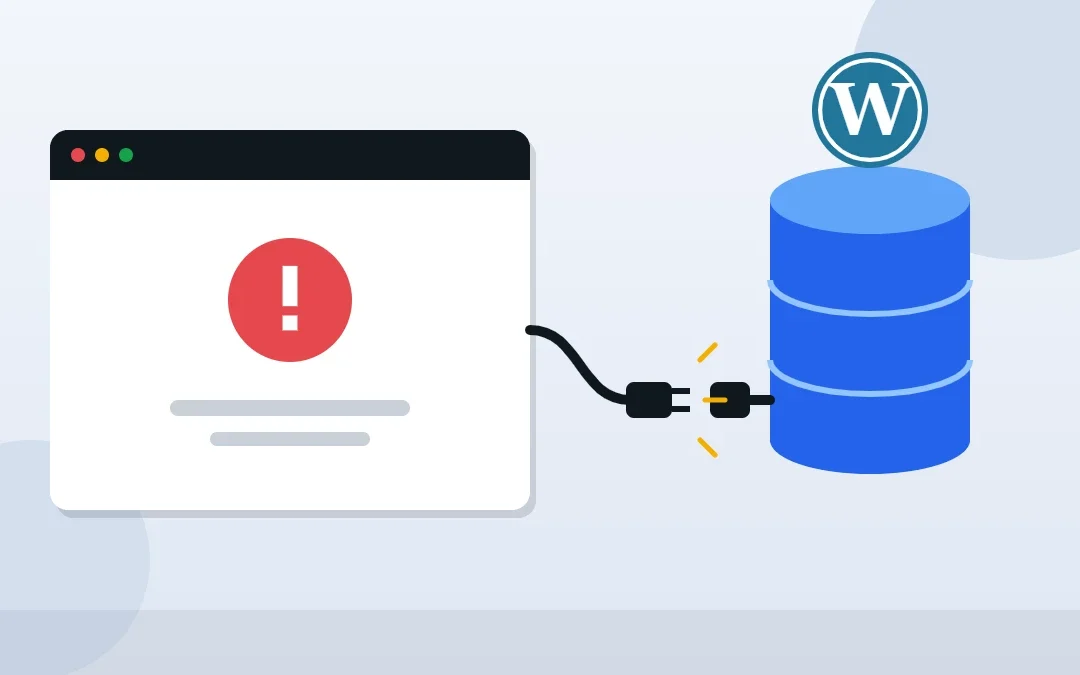
Seeing “Error establishing a database connection” instead of your website? It means WordPress cannot reach the MySQL database that stores your posts, pages and settings, so it cannot build any page. The good news: the cause is usually one of a few things, and most can be fixed in cPanel in under 30 minutes. This guide walks through each fix in order, from the quickest checks to the last resort.
Key Takeaways
- The error means WordPress cannot connect to its database. Your content is usually still there.
- The most common cause is wrong database details in
wp-config.php, often after a migration or a password change. - In cPanel, compare DB_NAME, DB_USER, DB_PASSWORD and DB_HOST with what is listed under MySQL Databases.
- If the details are right, repair the database with
WP_ALLOW_REPAIR, then remove that line. - If nothing works, the database server may be down or over quota: contact your host, then restore a backup if needed.
Table of Contents
- What Does “Error Establishing a Database Connection” Mean?
- Quick Checks Before You Change Anything
- Fix 1: Check the Database Details in wp-config.php
- Fix 2: Reset the Database User Password and Permissions
- Fix 3: Check the DB_HOST Value
- Fix 4: Repair the WordPress Database
- Fix 5: Rule Out Server Problems and Hacks
- Fix 6: Restore a Backup (Last Resort)
- How to Prevent This Error
- Frequently Asked Questions
- Conclusion
Free presentation for students & teachers
14 slides · PowerPoint (.pptx), opens in Google Slides & Keynote · free to use with credit
What Does “Error Establishing a Database Connection” Mean?
Every WordPress page is built from data in a MySQL (or MariaDB) database. When a visitor opens your site, WordPress uses the login details in wp-config.php to connect to that database. If the connection fails, WordPress stops and shows this error on every page.
| Cause | How common | Typical sign |
|---|---|---|
| Wrong database details in wp-config.php | Very common | Error appeared after moving the site, changing hosts or changing a password |
| Database user lacks permission | Common | Details look right, but the user is not assigned to the database |
| Corrupted database tables | Sometimes | wp-admin says one or more database tables are unavailable |
| Database server down or overloaded | Sometimes | Error comes and goes, or appears during traffic spikes |
| Database over its quota, or the site was hacked | Rare | Host emails about limits, or unknown files appear |
Quick Checks Before You Change Anything
- Check from another device or network. If the site loads elsewhere, the problem may be a cached error page.
- Open
yourdomain.com/wp-admin. If it shows a different message, such as “One or more database tables are unavailable”, go straight to repairing the database. - Check your host’s status page or email. A server outage or maintenance window affects every site on it, and only the host can fix it.
- Take a backup of your files and database before editing anything. See how to back up your website in cPanel.
Fix 1: Check the Database Details in wp-config.php
This fixes the error most of the time.
- In cPanel, open File Manager and go to your site’s folder (usually
public_html). - Right-click
wp-config.phpand choose Edit. Find these four lines:
define( 'DB_NAME', 'cpuser_wp123' );
define( 'DB_USER', 'cpuser_wpuser' );
define( 'DB_PASSWORD', 'your-password' );
define( 'DB_HOST', 'localhost' );- In another tab, open cPanel → MySQL Databases. Compare the database name and username exactly. On cPanel, both usually start with your cPanel username and an underscore.
- Fix any spelling difference in
wp-config.php, keep the quote marks, and save. - Reload your site.
Tip: Copy and paste names instead of typing them. One missing underscore or a space inside the quotes is enough to cause this error.
Fix 2: Reset the Database User Password and Permissions
You cannot see the current database password in cPanel, so if you are not sure it is right, set a new one:
- In cPanel → MySQL Databases, scroll to Current Users and click Change Password next to your WordPress database user.
- Create a strong password and copy it.
- Paste it into the
DB_PASSWORDline ofwp-config.phpand save. - Under Privileged Users on the same page, check the user is listed next to your database. If not, use Add User to Database and tick ALL PRIVILEGES.
Fix 3: Check the DB_HOST Value
On most cPanel hosting, DB_HOST is localhost. Some hosts use a separate database server with its own hostname or a port number (for example mysql.example.com or localhost:3306). If you recently moved hosts, check your new host’s documentation or ask support for the correct value.
Fix 4: Repair the WordPress Database
If the details are correct but tables are damaged, WordPress has a built-in repair tool.
- Add this line to
wp-config.php, just above the line that says “That’s all, stop editing!”:
define( 'WP_ALLOW_REPAIR', true );- Visit
yourdomain.com/wp-admin/maint/repair.php. - Click Repair Database (or Repair and Optimize Database).
- Remove the line from wp-config.php when you are done. The repair page does not require a login, so anyone could use it while the line is there.
You can also repair tables in cPanel → phpMyAdmin: select the database, tick all tables, and choose Repair table from the menu.
Fix 5: Rule Out Server Problems and Hacks
- Server down or overloaded: if the error appears and disappears, the database server may be struggling. Ask your host whether MySQL was restarted or hit its connection limit.
- Quota reached: some hosts suspend a database that exceeds its size limit. Check disk usage in cPanel and clean up old revisions, spam comments and unused plugin tables.
- Possible hack: if
wp-config.phpchanged without you touching it, or you see unknown files, scan the site and follow WordPress’s My site was hacked guide.
Fix 6: Restore a Backup (Last Resort)
If the database is badly damaged, restore the most recent working backup of the database from cPanel, your host’s backup tool or a backup plugin. Restore the database first; you usually do not need to restore files. After restoring, check that your latest posts and orders are there.
Tip: Set up automatic daily or weekly backups stored off the server, so a database problem never costs you more than a day of work.
How to Prevent This Error
- Update
wp-config.phpstraight away whenever you change the database password. - Keep regular off-site backups of the database.
- Remove unused plugins that add large database tables.
- Choose hosting with enough resources for your traffic.
- Keep WordPress, themes and plugins updated to reduce the risk of hacks.
Official sources: WordPress: Common errors · WordPress: Editing wp-config.php · cPanel: MySQL Databases
Frequently Asked Questions
What causes “Error establishing a database connection” in WordPress?
Usually wrong database details in wp-config.php, such as the database name, username, password or host. Other causes are corrupted tables, a database server that is down or overloaded, a database over its quota or a hacked site.
Will I lose my content because of this error?
Usually not. The error means WordPress cannot reach the database, not that the data is gone. Once the connection is fixed, your posts and pages come back.
How do I repair my WordPress database?
Add define( ‘WP_ALLOW_REPAIR’, true ); to wp-config.php, visit yourdomain.com/wp-admin/maint/repair.php and click Repair Database. Remove the line afterwards.
What should DB_HOST be in cPanel?
On most cPanel hosting it is localhost. Some hosts use a separate database server, so check your host’s documentation if localhost does not work.
Why did the error appear after I moved my site?
The new host has a different database name, username or password. Update the four database lines in wp-config.php to match the new host’s details.
Can a virtual assistant fix this WordPress error?
Yes. A WordPress VA can check wp-config.php, reset the database user, repair tables and restore backups through cPanel.
Conclusion
“Error establishing a database connection” looks scary, but it usually comes down to four lines in wp-config.php. Check those details against cPanel first, reset the password if you are unsure, repair the database if tables are damaged and contact your host if the server is the problem. With regular backups, even the worst case is a quick restore.
WordPress Management
Site down and no time to fix it? See my WordPress management service.

About the Author
Rahana Islam
Virtual Assistant & E-commerce Specialist with 7+ years of remote experience supporting businesses in the United States, Denmark and worldwide with WordPress, Shopify, Amazon, Walmart and eBay operations. Level 2 Fiverr seller with a 5.0★ rating from 167 reviews, an NSDA-certified trainer & assessor and the #1 LEDP earner of Dhaka district.
Is Your WordPress Site Down?
I can find the cause and get your site back online through cPanel.