
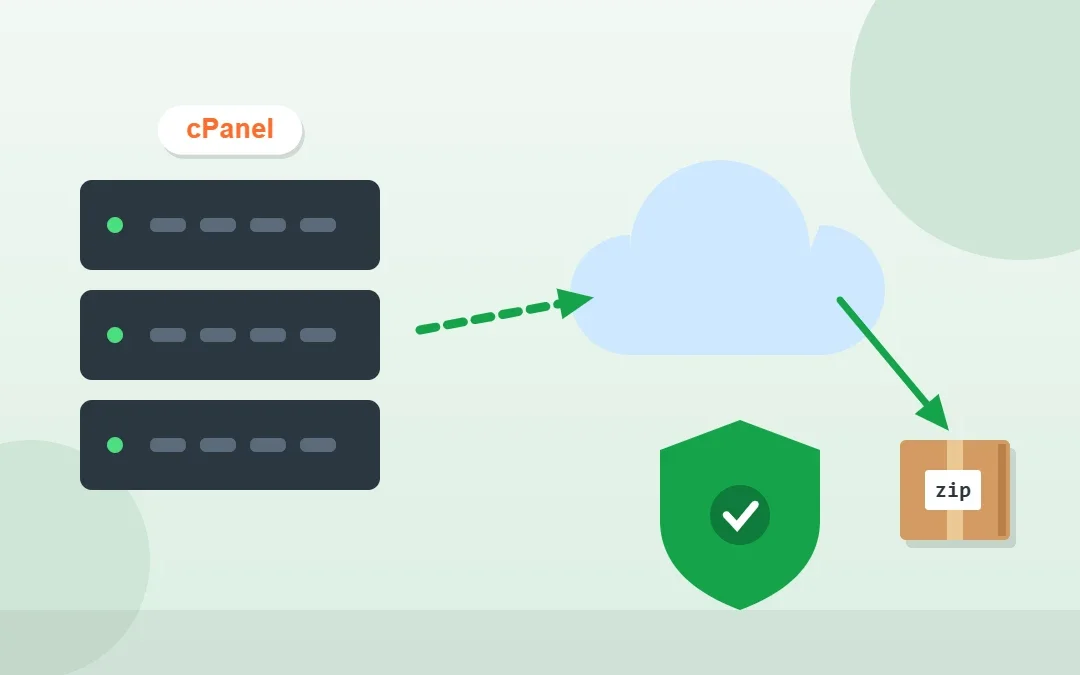
A regular cPanel backup is the simplest insurance policy for your website. A hacked plugin, a failed update or a simple mistake can take your site offline in seconds, and without a recent cPanel backup you could lose months of work, orders and content. If your hosting uses cPanel, you can create a full backup in cPanel in just a few clicks.
In this step-by-step guide you will learn how to generate a full backup in cPanel, download partial backups of files and databases, choose a safe cPanel backup schedule and restore your website when something goes wrong.
In this step-by-step guide you will learn how to generate a full backup in cPanel, how to download partial backups of your files and databases, how often to back up and how to restore your site if something goes wrong.
Key Takeaways
Free presentation for students & teachers
14 slides · PowerPoint (.pptx), opens in Google Slides & Keynote · free to use with credit
- A full cPanel backup includes your files, databases, email accounts and settings.
- Always download a copy and store it off the server, for example in Google Drive.
- Back up before every major update and at least weekly for active sites.
Table of Contents
- What Is Included in a cPanel Full Backup?
- How to Generate a Full Backup in cPanel
- How to Download Partial Backups
- How Often Should You Back Up?
- How to Restore Your Website
- Other Backup Options
- Where to Store Your cPanel Backup
- cPanel Backup vs WordPress Backup Plugin
- Common cPanel Backup Mistakes to Avoid
- Frequently Asked Questions
- Conclusion
What Is Included in a cPanel Full Backup?
A full account backup is a compressed archive (a .tar.gz file) that contains everything in your hosting account:
- All website files in your home directory, including WordPress core files, themes, plugins and uploads
- All MySQL databases, which store your posts, pages, products, orders and settings
- Email accounts, forwarders and filters
- DNS zone records, subdomains and other cPanel configuration
| Backup type | What it contains | Best for |
|---|---|---|
| Full account backup | Files, databases, emails and settings | Moving hosts or complete disaster recovery |
| Home directory backup | Website and account files only | Restoring files after a hack or mistake |
| MySQL database backup | One database at a time | Restoring content, orders and settings |
| Email forwarders and filters | Email routing rules | Restoring email configuration |
How to Generate a Full Backup in cPanel
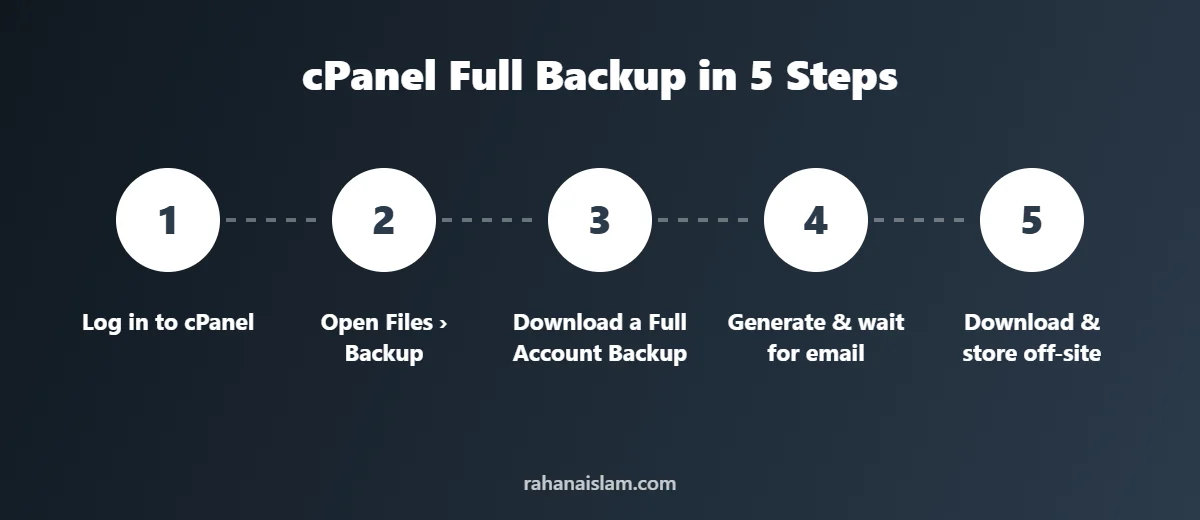
- Log in to cPanel. Use the link and login details from your hosting provider, often
yourdomain.com/cpanel. - Open the Backup tool. In the Files section, click Backup. Some hosts also offer a Backup Wizard, which guides you through the same steps.
- Choose “Download a Full Account Backup”. Under Full Backup, click the button to start.
- Select the backup destination. Choose Home Directory so the file is saved inside your hosting account, ready to download.
- Add your email address. cPanel will email you when the backup is ready. Large sites can take from a few minutes to over an hour.
- Click “Generate Backup”. cPanel starts building the archive in the background.
- Download the file. When it is finished, return to the Backup page and click the backup file name (it starts with
backup-and includes the date). Save it to your computer. - Store a second copy off-site. Upload the file to Google Drive, Dropbox or an external drive, then delete it from the server to save disk space.
Tip
Some hosts disable full backups on shared plans or limit how often you can create them. If you do not see the option, check your host’s help centre or ask support. Many hosts provide their own backup tool, such as JetBackup, instead.
How to Download Partial Backups
If you only need your website files or database, partial backups are faster and smaller. On the same Backup page you will find:
- Download a Home Directory Backup: click Home Directory to download all your files.
- Download a MySQL Database Backup: click the name of the database. For WordPress, the database name is listed in the
wp-config.phpfile asDB_NAME. - Email forwarders and filters: download these if you rely on custom email routing.
How Often Should You Back Up?
The right frequency depends on how often your site changes. A simple rule: back up at least as often as you would hate to redo the work.
| Type of website | Recommended backup frequency |
|---|---|
| Brochure or portfolio site | Monthly, and before every update |
| Blog with regular posts | Weekly |
| Online store with daily orders | Daily database backups, weekly full backups |
| Any site, before updates | Always back up first |
Professionals also follow the 3-2-1 rule: keep three copies of your data, on two different types of storage, with one copy off-site.
How to Restore Your Website
- Home directory backup: on the Backup page, use Restore a Home Directory Backup and upload your file.
- Database backup: use Restore a MySQL Database Backup and upload the
.sql.gzfile. - Full account backup: these usually cannot be restored from inside cPanel. Ask your host to restore it, or upload it during a migration to a new host.
Other Backup Options
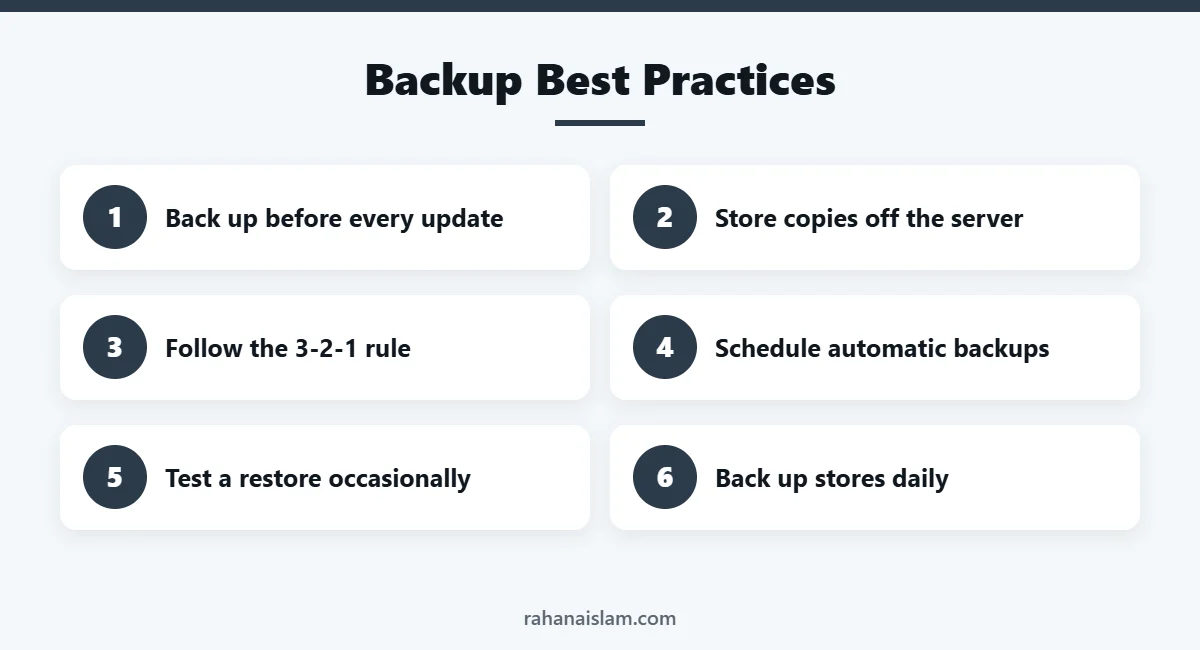
For WordPress sites, a backup plugin such as UpdraftPlus can schedule automatic backups and send them straight to Google Drive or Dropbox. Many managed hosts also take daily snapshots. The safest approach combines automatic backups with an occasional manual cPanel backup that you download yourself.
Where to Store Your cPanel Backup
A cPanel backup that only lives on the same server is not really safe. If the server fails or your account is compromised, you could lose the website and the backup together. Always keep at least one copy somewhere else:
- Cloud storage: Google Drive, Dropbox or OneDrive are easy and affordable.
- External hard drive: useful as an offline copy that cannot be reached by hackers.
- Remote FTP or S3 storage: some hosts let you send each cPanel backup to remote storage automatically.
This approach follows the widely recommended 3-2-1 backup rule. The CISA guide to data backup options explains why off-site copies matter.
cPanel Backup vs WordPress Backup Plugin
| Feature | cPanel backup | WordPress backup plugin |
|---|---|---|
| What it covers | Whole hosting account, including emails | WordPress files and database only |
| Scheduling | Manual (unless your host adds a tool) | Automatic schedules |
| Off-site storage | Download manually | Sends to cloud storage |
| Best for | Moving hosts, full recovery | Everyday protection |
The safest setup uses both: an automatic plugin for daily protection and a manual cPanel backup before major changes. For WordPress-specific advice, see the official WordPress backup documentation.
Common cPanel Backup Mistakes to Avoid
- Leaving backups on the server: large files fill your disk space and are not safe there.
- Never testing a restore: a cPanel backup you cannot restore is not a backup.
- Forgetting the database: files alone will not bring back posts, products or orders.
- Backing up too rarely: match your cPanel backup schedule to how often your site changes.
Related: Customising your WordPress forms? Learn how to add an icon in an input field with CSS.
Seeing a blank white page instead? Follow my guide to fix the WordPress white screen of death.
Frequently Asked Questions
How long does a cPanel full backup take?
Small sites usually finish in a few minutes. Large sites with many images, emails or big databases can take an hour or more. cPanel emails you when it is ready.
Where is the cPanel backup file saved?
If you choose Home Directory as the destination, the file is saved in the root of your hosting account and listed on the Backup page for download.
Does a cPanel backup include emails?
Yes. A full account backup includes email accounts and messages stored on the server, as well as forwarders and filters.
Can I schedule automatic cPanel backups?
The standard cPanel Backup tool is manual. For scheduled backups, use your host’s backup system, such as JetBackup, or a WordPress backup plugin.
How do I download a cPanel backup?
Open Files > Backup in cPanel, generate a full backup to your home directory, then click the file name to download it when cPanel emails you that it is ready.
How much space does a cPanel backup need?
Roughly the size of your website files, databases and emails combined, compressed. Make sure you have enough free disk space before you generate a full backup in cPanel.
Site showing an error? See my step-by-step guide to fix “There has been a critical error on this website” in WordPress.
Conclusion
Creating a full backup in cPanel takes only a few minutes, and it can save your business from serious downtime. Make backups part of your routine, store copies off-site and always back up before updates.
WordPress Management Services
Rather have someone handle updates, backups, security and fixes for you? See my WordPress management services.
📌 Save this guide for later
Pin it to your Pinterest board so you can find it again when you need it.

About the Author
Rahana Islam
Virtual Assistant & E-commerce Specialist with 7+ years of remote experience supporting businesses in the United States, Denmark and worldwide with WordPress, Shopify, Amazon, Walmart and eBay operations. Level 2 Fiverr seller with a 5.0★ rating from 167 reviews, an NSDA-certified trainer & assessor and the #1 LEDP earner of Dhaka district.
Want Your Website Maintained for You?
I handle WordPress updates, backups, security checks and fixes, so your site stays fast, safe and online.