
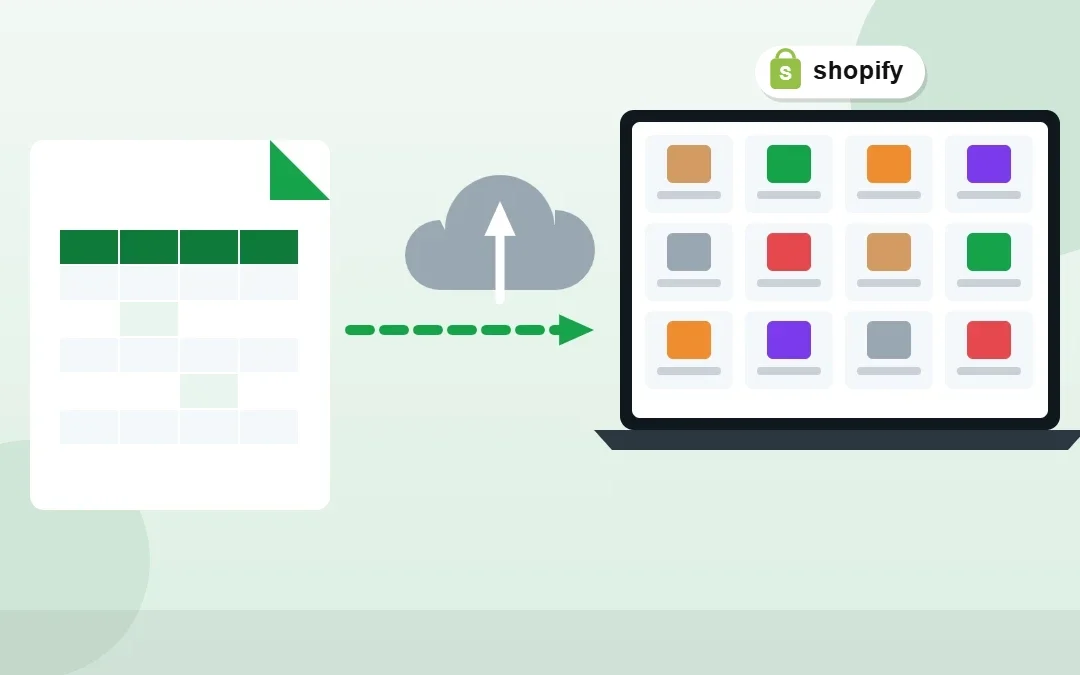
A Shopify bulk product upload with a CSV file is the fastest way to add hundreds or thousands of products to your store. It is also the easiest way to break your catalog if one column is wrong. I used this method to upload 2,061 products and more than 3,300 variants for a home décor retailer, so this guide covers the exact steps, the current template columns and the mistakes to avoid.
Key Takeaways
- Download Shopify’s sample CSV and keep its column names exactly as they are.
- Only Title is required for new products; variants also need a URL handle and Option columns.
- Images must be public https:// URLs, one row per image.
- Always test a small batch of 5–10 products before importing the full file.
Table of Contents
- When to Use CSV for Shopify Product Uploads
- Step 1: Download Shopify’s CSV Template
- Step 2: Understand the Key Columns
- Step 3: Add Variants Correctly
- Step 4: Prepare Product Images
- Step 5: Save the File Properly
- Step 6: Test With a Small Batch
- Step 7: Import and Verify
- Common CSV Import Errors and Fixes
- Frequently Asked Questions
- Conclusion
Free presentation for students & teachers
14 slides · PowerPoint (.pptx), opens in Google Slides & Keynote · free to use with credit
Real example
See how I uploaded 2,061 products and 3,300+ variants to one Shopify store
When to Use CSV for Shopify Product Uploads
CSV import is ideal when you have many products with consistent data: a supplier spreadsheet, a migration from WooCommerce or another platform, or a seasonal catalog update. Manual entry is still better for a handful of complex products with custom descriptions. Most real projects use both: CSV for the bulk, manual fixes for the exceptions.

Step 1: Download Shopify’s CSV Template
In Shopify admin, go to Products → Import and download the sample CSV. Use it as your template and never rename the column headers. Shopify updated its column names recently, so older templates you find online may use outdated names such as “Image Src”. The current file uses names like URL handle, Product image URL and Variant image URL.
Do not add your own extra columns (except Collection), because unsupported columns break the format.
Free Shopify product CSV template (with example rows)
Uses Shopify’s current column names and includes a product with 3 size variants and 2 images, plus a single product with no variants. Open it in Google Sheets or Excel, replace the example data and image links with your own, and keep the header row as it is.
Prefer a blank file? Download Shopify’s official product CSV template, or read Shopify’s product CSV guide.
Step 2: Understand the Key Columns
| Column | What it does | Tip |
|---|---|---|
| Title | Product name | The only required column for new products |
| URL handle | Unique product identifier, used in the URL | Required for variants and updates. Keep it short and lowercase with hyphens |
| Description | Product description (HTML allowed) | Write for customers first, then add keywords naturally |
| Vendor, Type, Tags | Brand, product type and tags | Use consistent spelling so filters and collections work |
| Option1 name / value | Variant option such as Size: Small | Up to 3 options. Use “Default Title” if there are no variants |
| SKU, Price, Inventory | Variant details | Each variant row needs its own values |
| Product image URL | Public image link | One row per image, with Image position starting at 1 |
| Image alt text | Accessibility and SEO text | Keep under 125 characters |
| Status | active, draft or archived | Import as draft first if you want to review before going live |
Step 3: Add Variants Correctly
Variants are the most common source of problems. Put the full product details and the first image in the first row. For each additional variant, add a new row with the same URL handle, leave Title, Description, Vendor and Tags empty, and fill in the option value, SKU, price and inventory.
If you leave out the Option1 columns, Shopify creates a single default variant and deletes the existing ones, so double-check every variant row.
Step 4: Prepare Product Images
- Images must be publicly accessible over https://. Upload them to Content → Files in Shopify, or another public host, and paste the URLs.
- Add one row per image under the same URL handle, with Image position 1, 2, 3 and so on.
- Use Variant image URL to link a specific image to a colour or style.
- Avoid file names ending in _thumb, _small or _medium.
- Write descriptive alt text for every image.
Step 5: Save the File Properly
Save as a UTF-8 CSV. If you work in Excel, make sure it exports comma-separated values; Google Sheets (File → Download → CSV) usually avoids encoding issues with special characters like é or ™.
Step 6: Test With a Small Batch
Before importing hundreds of products, import 5 to 10 as draft. Check titles, variants, prices, images and collections on the live product pages. Fixing a template mistake on 10 products takes minutes. Fixing it on 2,000 can take days.
Step 7: Import and Verify
- Go to Products → Import and upload your CSV.
- Tick Overwrite products with matching handles only if you are updating existing products. Blank cells will overwrite existing values with blanks.
- Preview, then import. Shopify emails you when it finishes.
- Spot-check products from each category, then switch them from draft to active.
For big catalogs, import in batches (for example 200–300 products at a time) and track each batch in a sheet. That is how I organised the 2,061-product project into 10 batches.
Common CSV Import Errors and Fixes
| Problem | Cause | Fix |
|---|---|---|
| Variants disappeared | Option1 columns missing | Always include Option1 name and value |
| Import error on a row | Related columns partly filled | Fill all related columns or leave them all empty |
| Images not showing | Private or changed image URLs | Use public https URLs and re-check after exports |
| Special characters broken | Wrong file encoding | Save as UTF-8 CSV |
| Duplicate products | Different handles for the same product | Use one consistent URL handle per product |
Frequently Asked Questions
How do I bulk upload products to Shopify?
Download Shopify’s sample CSV from Products → Import, fill in your products using the same column names, add image URLs and variants, then import the file. Test with a small batch first.
What columns are required in a Shopify product CSV?
Only Title is required for new products. If you add variants, URL handle is also required, along with Option1 name and value for each variant.
Can I upload product images with a CSV?
Yes. Add public https:// image URLs in the Product image URL column, one row per image, with Image position to set the order.
How many products can I import at once?
Large files work, but importing in batches of a few hundred products makes it much easier to check for mistakes.
Where can I download a Shopify product CSV template?
In Shopify admin, go to Products → Import and download the sample CSV, or use the free example template in this guide. It uses Shopify’s current column names and includes example variant and image rows you can copy.
Can a virtual assistant do Shopify bulk uploads for me?
Yes. A VA can clean your supplier data, build the CSV, upload images and check every batch. I offer Shopify product upload services.
Conclusion
A Shopify bulk product upload with CSV saves hours, as long as you follow the template, handle variants carefully, use public image URLs and test a small batch first. Work in batches, keep a tracker and your catalog will stay clean as it grows.
Shopify Product Upload Services
Want your catalog uploaded for you? See my Shopify product upload service and the 2,061-product case study.
📌 Save this guide for later
Pin it to your Pinterest board so you can find it again when you need it.

About the Author
Rahana Islam
Virtual Assistant & E-commerce Specialist with 7+ years of remote experience supporting businesses in the United States, Denmark and worldwide with WordPress, Shopify, Amazon, Walmart and eBay operations. Level 2 Fiverr seller with a 5.0★ rating from 167 reviews, an NSDA-certified trainer & assessor and the #1 LEDP earner of Dhaka district.
Need Your Products Uploaded?
I upload products by CSV or by hand, with clean variants, images and SEO titles at $5–7/hour.