
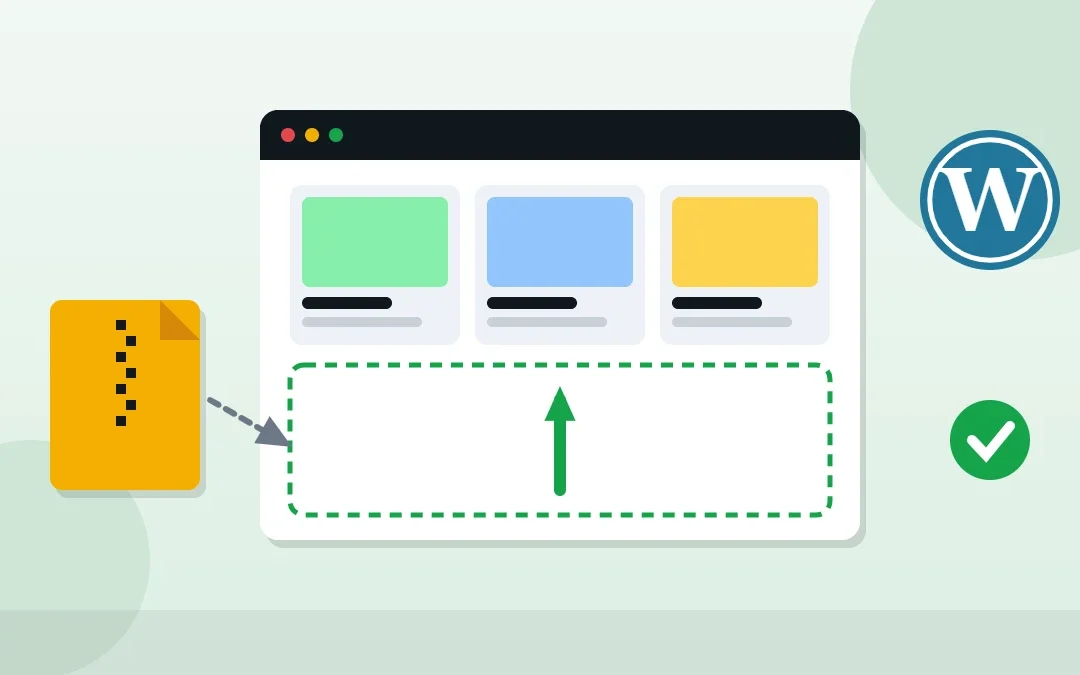
Need to install a WordPress theme in cPanel? There are two ways. You can upload the theme ZIP from your WordPress dashboard, or upload it straight to your server with cPanel File Manager. The second way works when the dashboard upload fails or you cannot log in. This step-by-step guide covers both methods, how to activate the theme safely and how to fix the most common upload errors.
Key Takeaways
- The easiest method is Appearance → Themes → Add New Theme → Upload Theme in your WordPress dashboard.
- If the upload fails, use cPanel File Manager: upload the ZIP to
public_html/wp-content/themes/and extract it there. - Upload the theme ZIP itself, not the full package you downloaded, or WordPress will say the stylesheet is missing.
- “Exceeds upload_max_filesize” means your PHP upload limit is too low. Use File Manager or raise the limit.
- Take a backup before you activate a new theme, and preview it first with Live Preview.
Table of Contents
Free presentation for students & teachers
11 slides · PowerPoint (.pptx), opens in Google Slides & Keynote · free to use with credit
Before You Start
- Get the right file. Premium themes often download as a package containing documentation, a child theme and the theme ZIP. You need the theme ZIP inside it, usually named after the theme (for example
theme-name.zip). - Back up your site. Use cPanel’s backup tool or a backup plugin. See how to back up your website in cPanel.
- Have your logins ready for your hosting account (cPanel) and WordPress admin.
Tip: Only install themes from WordPress.org or a trusted developer. “Free” copies of paid themes from random sites often contain malware.
Method 1: Upload a Theme From the WordPress Dashboard
- Log in to WordPress admin (
yourdomain.com/wp-admin). - Go to Appearance → Themes and click Add New Theme.
- Click Upload Theme, choose the theme’s ZIP file and click Install Now.
- When it says the theme was installed successfully, click Live Preview to check it, then Activate.
If you are uploading a newer version of a theme you already have, WordPress shows a comparison and a Replace active with uploaded button, so you can update it without deleting it first.
Method 2: Upload a WordPress Theme to cPanel With File Manager
Use this method when the dashboard upload fails, the theme file is large, or you are locked out of WordPress.
- Log in to cPanel and open File Manager (under Files).
- Open your site’s folder (usually
public_html, or the folder for an addon domain), then go towp-content/themes. - Click Upload in the top toolbar and select the theme ZIP. Wait until the progress bar reaches 100%.
- Go back to
wp-content/themes, right-click the ZIP and choose Extract. Keep the path as the current themes folder. - Check that the new folder contains
style.cssdirectly inside it (not inside a second folder). - Delete the ZIP file to keep the folder tidy.
- In WordPress, go to Appearance → Themes. The new theme now appears there; preview it and click Activate.
public_html/
  wp-content/
    themes/
      your-theme/
        style.css
        functions.php
        ...
How to Activate the Theme Safely
- Use Live Preview before activating, and check the homepage, a blog post and a page.
- Install the theme’s required plugins if it asks for them.
- Check your menus and widgets under Appearance; they often need to be reassigned after a theme change.
- Use a child theme if you plan to edit the theme’s code, so updates do not wipe your changes.
Common Theme Upload Errors and Fixes
| Error | What it means | Fix |
|---|---|---|
| The package could not be installed. The theme is missing the style.css stylesheet. | You uploaded the full download package, not the theme ZIP. | Unzip the package on your computer and upload the theme ZIP inside it. |
| The uploaded file exceeds the upload_max_filesize directive in php.ini. | The theme is bigger than your PHP upload limit. | Use File Manager (Method 2) or increase the WordPress upload limit. |
| The link you followed has expired. | The upload hit a size or time limit. | Raise the upload limit, or use File Manager. |
| Destination folder already exists. | A theme with the same folder name is already installed. | Use the Replace option, or delete or rename the old theme folder in File Manager first. |
| White screen or critical error after activating | The theme conflicts with a plugin or your PHP version. | Rename the theme’s folder in File Manager so WordPress falls back to a default theme. See how to fix the WordPress critical error. |
Tip: WordPress can only fall back to another theme if one is installed. Keep a default theme such as Twenty Twenty-Five on your site.
How to Delete a Theme You No Longer Use
In WordPress, go to Appearance → Themes, click the inactive theme, then Delete in the bottom corner. In cPanel, you can also delete its folder from wp-content/themes. Never delete the active theme. Removing unused themes reduces clutter and the number of files that need security updates.
Official sources: WordPress: Working with themes · cPanel: File Manager · WordPress: Common errors
Frequently Asked Questions
How do I install a WordPress theme in cPanel?
Open File Manager in cPanel, go to public_html/wp-content/themes, upload the theme ZIP and extract it. Then activate the theme in WordPress under Appearance, Themes.
Can I upload a WordPress theme without logging in to WordPress?
Yes. You can upload and extract the theme in cPanel File Manager without logging in, but you need WordPress admin to activate it.
Why does WordPress say the theme is missing the style.css stylesheet?
You most likely uploaded the full download package instead of the theme ZIP. Unzip the package and upload the theme ZIP inside it.
Where are WordPress themes stored in cPanel?
Themes are stored in the wp-content/themes folder inside your site’s root folder, usually public_html.
How do I fix a site that broke after activating a theme?
In cPanel File Manager, rename the new theme’s folder in wp-content/themes. WordPress then switches to another installed theme, and you can log in again.
Can a virtual assistant install and set up my WordPress theme?
Yes. A WordPress VA can back up your site, upload and activate the theme, install its required plugins and fix menus and widgets afterwards.
Conclusion
Uploading from the WordPress dashboard is the quickest way to install a theme. When that fails, cPanel File Manager gets the theme onto your server in a few minutes. Upload the correct ZIP, take a backup first, preview before activating and keep a default theme installed as a safety net.
WordPress Management
Want your theme installed and set up for you? See my WordPress management service.

About the Author
Rahana Islam
Virtual Assistant & E-commerce Specialist with 7+ years of remote experience supporting businesses in the United States, Denmark and worldwide with WordPress, Shopify, Amazon, Walmart and eBay operations. Level 2 Fiverr seller with a 5.0★ rating from 167 reviews, an NSDA-certified trainer & assessor and the #1 LEDP earner of Dhaka district.
Need Help With Your WordPress Site?
I can install themes, fix errors and keep your WordPress site updated.