
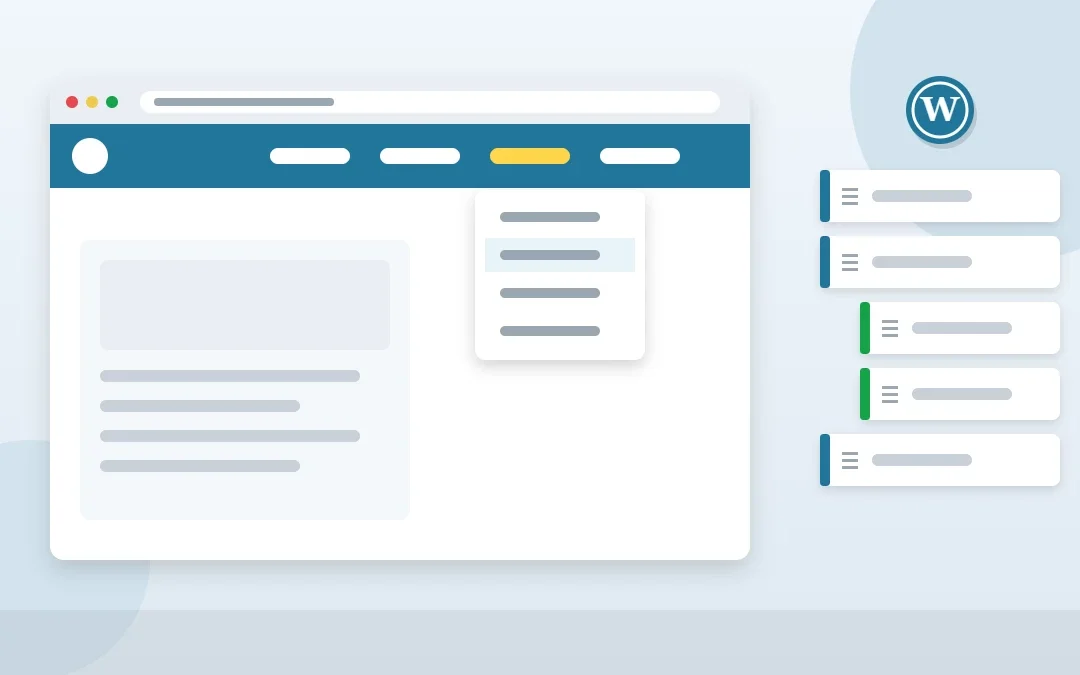
A clear WordPress menu is one of the first things visitors use on your website. A well-planned WordPress menu helps people find your services quickly, keeps them on your site longer and helps search engines understand which pages matter most. A messy WordPress menu does the opposite.
In this guide you will learn how to create a WordPress menu step by step, add dropdown sub-menus and custom links, set up a mobile menu and follow WordPress menu best practices that improve both user experience and SEO.
Key Takeaways
- Classic themes use Appearance > Menus; block themes use the Site Editor’s Navigation block.
- Keep your main menu to five to seven items with clear, descriptive labels.
- Link to real page URLs, not homepage anchors, so menus work from every page.
Table of Contents
- Classic Menus vs Block Theme Navigation
- How to Create a Menu in WordPress (Classic Themes)
- How to Add Dropdown Sub-Menus
- How to Add Custom Links
- Creating Menus in Block Themes
- Menu Best Practices for UX and SEO
- How to Style Your WordPress Menu
- WordPress Menu and Accessibility
- Common WordPress Menu Problems and Fixes
- Frequently Asked Questions
- Conclusion
Free presentation for students & teachers
14 slides · PowerPoint (.pptx), opens in Google Slides & Keynote · free to use with credit
Classic Menus vs Block Theme Navigation
| Classic themes (Divi, Astra, Kadence) | Block themes (Twenty Twenty-Four and newer) | |
|---|---|---|
| Where to edit | Appearance > Menus or Customizer | Appearance > Editor > Navigation |
| How menus are built | Drag and drop list of items | Navigation block inside header template |
| Menu locations | Chosen by the theme (Primary, Footer, Mobile) | Placed directly in the template |
How to Create a Menu in WordPress (Classic Themes)
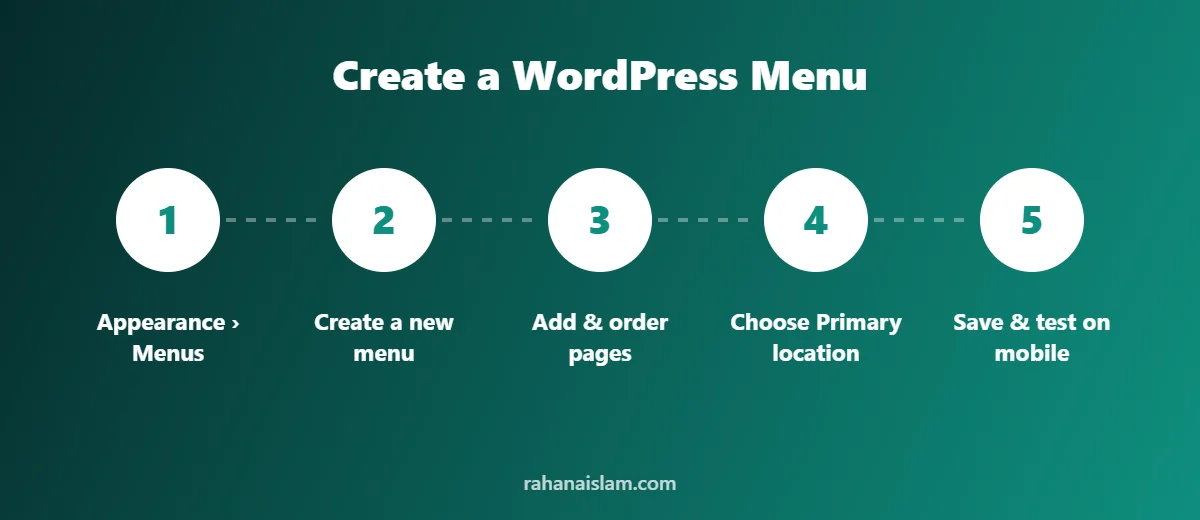
- Go to Appearance > Menus in your WordPress dashboard.
- Create a new menu. Click create a new menu, give it a name such as “Main Menu” and click Create Menu.
- Add pages. In the left panel, tick the pages you want, such as Home, About, Services, Portfolio, Blog and Contact, then click Add to Menu.
- Reorder items. Drag and drop items into the order you want visitors to see them.
- Rename labels if needed. Click an item’s arrow to change its Navigation Label, for example “Contact Me” instead of “Contact”.
- Choose the display location. Under Menu Settings, tick the location, usually Primary Menu.
- Click Save Menu and check your website on desktop and mobile.
How to Add Dropdown Sub-Menus
Dropdowns are useful when you have several related pages, for example individual service pages under “Services”. To create one, add the child pages to the menu, then drag each one slightly to the right under the parent item. WordPress indents it and displays it as a dropdown. Keep dropdowns short, ideally no more than six to eight items.
How to Add Custom Links
Use the Custom Links panel to add links to external sites, such as your Fiverr or LinkedIn profile, or to a specific section of a page. Enter the URL and link text, then click Add to Menu.
Important tip
Avoid using links like #about on their own. They only work on the homepage. On any other page they do nothing. Use full page URLs such as /about/, or /#about if you really need to link to a homepage section.
Creating Menus in Block Themes
- Go to Appearance > Editor and open Navigation.
- Select your menu or create a new one, then click the + icon to add pages or custom links.
- Drag items to reorder them, or nest them to create sub-menus.
- Open the header template to adjust how the menu looks on mobile, for example always showing a hamburger icon.
- Click Save.
Menu Best Practices for UX and SEO
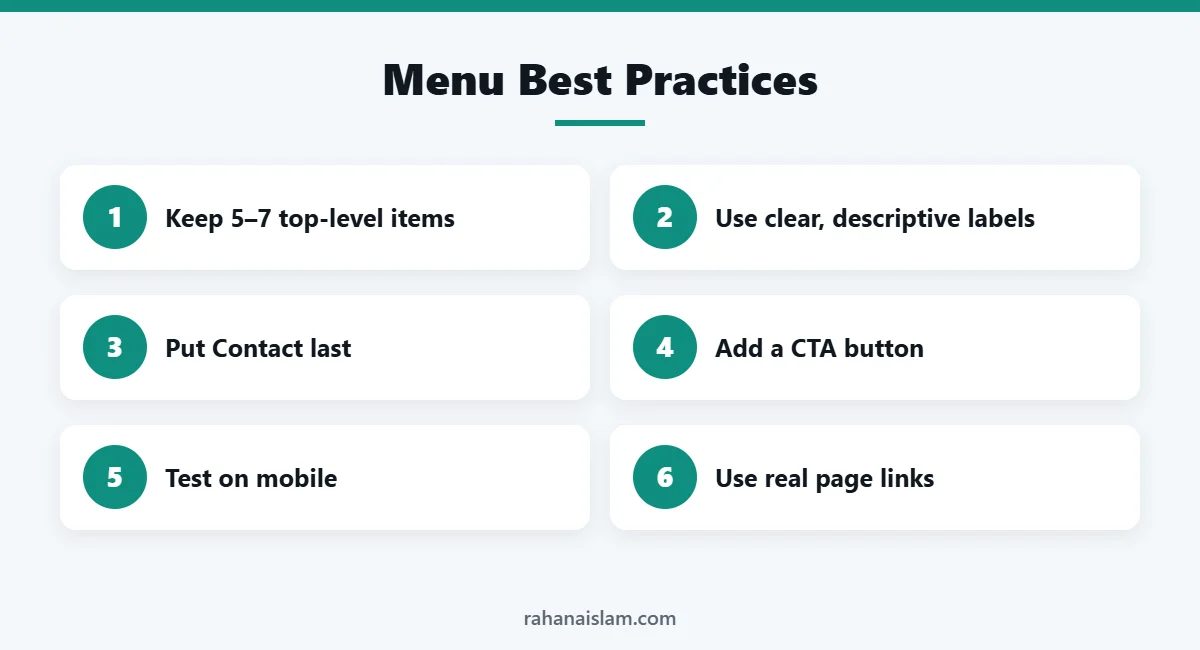
- Keep it short. Five to seven top-level items are easy to scan and work well on mobile.
- Use clear, descriptive labels. “Services” is better than “What We Do” for both visitors and search engines.
- Put the most important pages first and last. People notice the first and last items most, which is why “Contact” often sits at the end.
- Add a call-to-action button such as “Book a Call” to stand out from regular links.
- Test on mobile. Most visitors browse on phones, so check that the hamburger menu opens and closes smoothly.
- Use a footer menu for secondary pages such as Privacy Policy and Terms.
- Avoid broken links. Check your menu after renaming or deleting pages.
Just set up WordPress? See how to install WordPress in cPanel and the 10 settings to configure first.
How to Style Your WordPress Menu
Most themes let you style your WordPress menu without code. Look in Appearance > Customize, your theme options or your page builder’s header settings. Common options include:
- Font, size and colour of menu links
- Hover and active colours so visitors know where they are
- Sticky header so the WordPress menu stays visible while scrolling
- A highlighted call-to-action button such as “Contact” or “Book a Call”
For custom styling, add a CSS class to a menu item: open Screen Options at the top of the Menus screen, enable CSS Classes, then add your class to the item and style it in Additional CSS.
WordPress Menu and Accessibility
An accessible WordPress menu works for everyone, including people using keyboards and screen readers. Make sure every menu item can be reached with the Tab key, dropdowns open on focus as well as hover, and link text is descriptive. The W3C menu accessibility tutorial is an excellent reference, and the official WordPress Menus documentation covers every setting.
Common WordPress Menu Problems and Fixes
- Menu not showing: assign your WordPress menu to a theme location under Menu Settings.
- Links do nothing on inner pages: replace anchor links like
#aboutwith full page URLs. - Dropdown not opening on mobile: check your theme’s mobile menu settings or clear your cache.
- Changes not visible: clear your caching plugin and browser cache after saving the WordPress menu.
Frequently Asked Questions
Why is my WordPress menu not showing?
Usually the menu has not been assigned to a theme location. Go to Appearance > Menus, tick the Primary location under Menu Settings and save.
How many menus can I create in WordPress?
You can create as many menus as you like, but each theme location can only display one menu at a time.
Can I add a menu to the footer?
Yes. Assign a menu to the footer location if your theme has one, or add a Navigation Menu widget or block to a footer area.
Does my menu affect SEO?
Yes. Menu links tell search engines which pages are most important and help them crawl your site. Clear labels and working links improve both SEO and user experience.
How many items should a WordPress menu have?
Five to seven top-level items is ideal. More than that makes your WordPress menu hard to scan, especially on mobile.
Can I have different WordPress menus on different pages?
Yes. Many themes and page builders, including Divi, let you assign a different WordPress menu to specific pages or templates.
Site showing an error? See my step-by-step guide to fix “There has been a critical error on this website” in WordPress.
Conclusion
A well-planned WordPress menu makes your website easier to use and easier for search engines to understand. Keep it short, use clear labels and real page links, test it on mobile and review it whenever you add new pages.
WordPress Management Services
Rather have someone handle updates, backups, security and fixes for you? See my WordPress management services.
📌 Save this guide for later
Pin it to your Pinterest board so you can find it again when you need it.

About the Author
Rahana Islam
Virtual Assistant & E-commerce Specialist with 7+ years of remote experience supporting businesses in the United States, Denmark and worldwide with WordPress, Shopify, Amazon, Walmart and eBay operations. Level 2 Fiverr seller with a 5.0★ rating from 167 reviews, an NSDA-certified trainer & assessor and the #1 LEDP earner of Dhaka district.
Want Your Website Structure Done Right?
I build and maintain clean, SEO-friendly WordPress websites, from menus and pages to speed and security.