
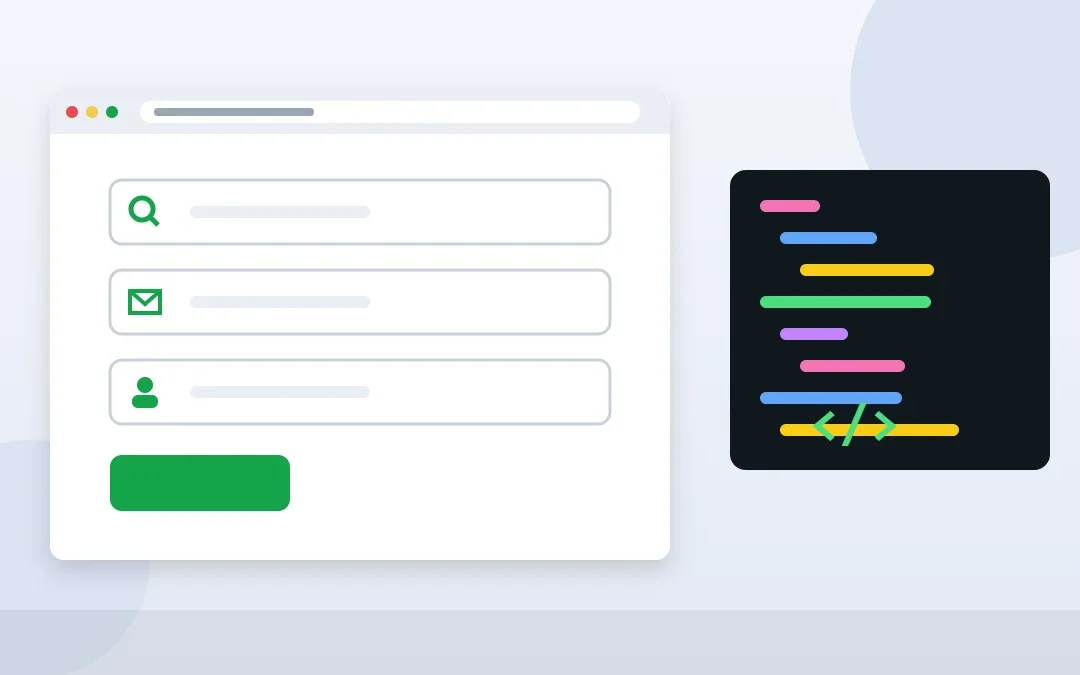
Adding an icon in input field design is a small detail that makes forms feel professional. An envelope in the email field or a magnifying glass in a search box helps visitors understand each field at a glance, and a well-placed icon in input field layouts makes contact and checkout forms look modern.
In this tutorial you will learn four easy ways to add an icon in input field and placeholder text using HTML and CSS, how to do it in Contact Form 7 and Divi, and how to keep every icon in input field accessible.
In this tutorial you will learn four ways to add an icon in a placeholder or input field using HTML and CSS, how to do it in Contact Form 7 and WordPress, and how to keep your forms accessible.
Key Takeaways
- The most reliable method is a wrapper with a positioned icon and left padding on the input.
- Emoji or Unicode symbols in the placeholder text are the quickest option but are less flexible.
- Never rely on placeholders alone. Always keep a visible or screen-reader label.
Table of Contents
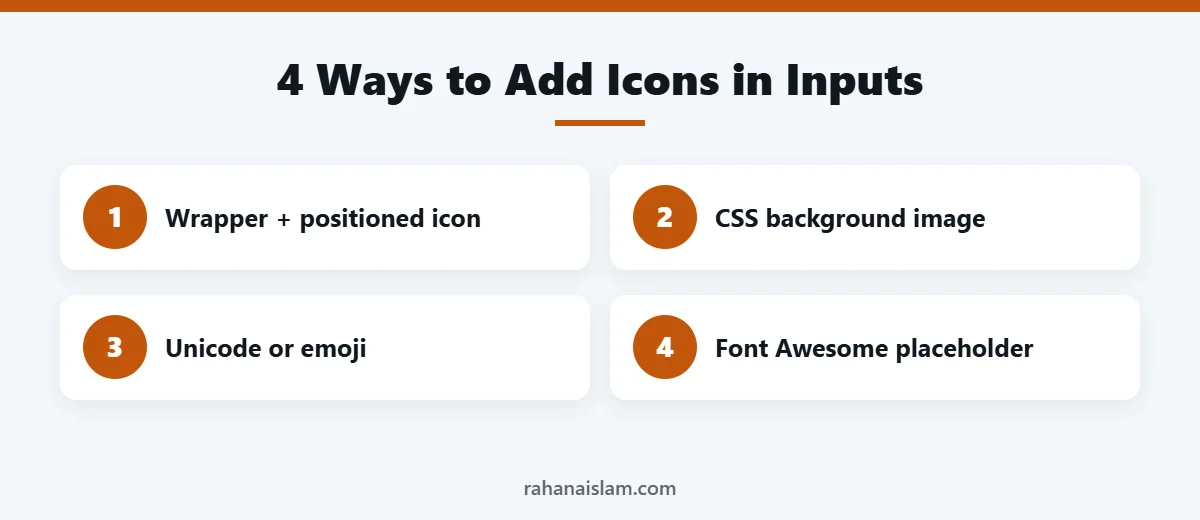
- Method 1: Wrapper With a Positioned Icon (Recommended)
- Method 2: CSS Background Image
- Method 3: Unicode or Emoji in the Placeholder
- Method 4: Font Awesome Icon in the Placeholder
- Adding Icons in Contact Form 7
- Accessibility Best Practices
- Best Icon Sets for an Icon in Input Field
- Making an Icon in Input Field Work on Mobile
- Frequently Asked Questions
- Conclusion
Free presentation for students & teachers
13 slides · PowerPoint (.pptx), opens in Google Slides & Keynote · free to use with credit
Method 1: Wrapper With a Positioned Icon (Recommended)
Wrap the input in a container, place the icon inside it with absolute positioning and add left padding to the input so the text does not overlap the icon. This works with any icon library or inline SVG and keeps the icon visible even after the visitor starts typing.
<div class="input-icon">
  <svg aria-hidden="true" width="18" height="18" viewBox="0 0 24 24"><path fill="currentColor" d="M20 4H4a2 2 0 0 0-2 2v12a2 2 0 0 0 2 2h16a2 2 0 0 0 2-2V6a2 2 0 0 0-2-2Zm0 4-8 5-8-5V6l8 5 8-5Z"/></svg>
  <label for="email" class="screen-reader-text">Email address</label>
  <input id="email" type="email" placeholder="Your email address">
</div>
.input-icon { position: relative; }
.input-icon svg {
position: absolute; left: 14px; top: 50%;
transform: translateY(-50%); color: #8a94a0; pointer-events: none;
}
.input-icon input { width: 100%; padding: 12px 14px 12px 42px; }Method 2: CSS Background Image
If you cannot change the HTML, add the icon as a background image on the input itself. An inline SVG data URI keeps it lightweight:
input[type="email"] {
  padding-left: 42px;
  background: url("data:image/svg+xml,%3Csvg xmlns='http://www.w3.org/2000/svg' width='18' height='18' viewBox='0 0 24 24'%3E%3Cpath fill='%238a94a0' d='M20 4H4a2 2 0 0 0-2 2v12a2 2 0 0 0 2 2h16a2 2 0 0 0 2-2V6a2 2 0 0 0-2-2Zm0 4-8 5-8-5V6l8 5 8-5Z'/%3E%3C/svg%3E") no-repeat 14px center;
}
This method is ideal for WordPress forms where you can only add custom CSS.
Method 3: Unicode or Emoji in the Placeholder
The quickest option is to type a symbol directly into the placeholder text:
<input type="search" placeholder="🔍 Search articles">
<input type="email" placeholder="✉ Your email address">
It needs no CSS, but the icon disappears as soon as the visitor types, and emoji look slightly different on each device.
Method 4: Font Awesome Icon in the Placeholder
If your site already loads Font Awesome, you can use its Unicode value in the placeholder and set the placeholder font:
<input type="text" class="fa-placeholder" placeholder=" Your name">.fa-placeholder::placeholder {
font-family: "Font Awesome 6 Free", sans-serif;
font-weight: 900;
}Only use this if Font Awesome is already loaded. Adding the whole library just for a few icons slows your site down, so inline SVG (Method 1 or 2) is usually better.
Adding Icons in Contact Form 7
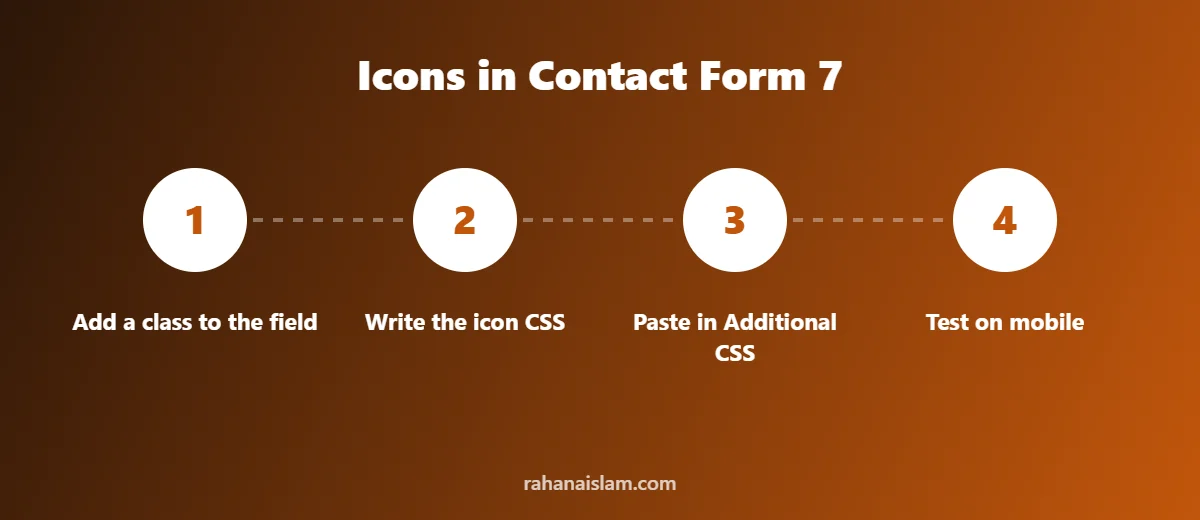
Contact Form 7 lets you add a custom class to any field. In the form editor, add a class to the email tag, for example class:has-icon-email, then add the CSS from Method 2 under Appearance > Customize > Additional CSS, targeting .has-icon-email. You can repeat this for name, phone and message fields with different icons.
Using Divi? Divi’s Contact Form module lets you add custom CSS classes and styles in the module’s Advanced tab, so the same CSS approach works there too.
Accessibility Best Practices
- Keep a label. Placeholders disappear when people type, and some screen readers ignore them. Use a visible label or a screen-reader-only label.
- Hide decorative icons from assistive technology with
aria-hidden="true". - Check contrast. Placeholder and icon colours should be readable but clearly lighter than typed text.
- Test on mobile to make sure icons do not overlap text on small screens.
| Method | Icon stays visible while typing | Needs HTML changes | Best for |
|---|---|---|---|
| Wrapper + positioned icon | Yes | Yes | Custom forms and themes |
| CSS background image | Yes | No | WordPress forms, CSS-only changes |
| Unicode or emoji | No | Placeholder text only | Quick fixes |
| Font Awesome placeholder | No | Placeholder text only | Sites already using Font Awesome |
Best Icon Sets for an Icon in Input Field
You can use almost any icon library, but lightweight SVG icons are the best choice for speed. Popular free options include:
- Heroicons: clean, simple SVG icons from the makers of Tailwind CSS.
- Lucide: a large, open-source set of consistent line icons.
- Font Awesome: very popular, though heavier if you load the whole library.
For one or two icons, copy the SVG code directly into your form instead of loading a full icon font.
Making an Icon in Input Field Work on Mobile
On small screens, an icon in input field layouts can overlap text or make fields feel cramped. Keep these tips in mind:
- Use at least 16px font size in inputs so iOS does not zoom in automatically.
- Keep icons around 16 to 20px and leave enough left padding for the text.
- Make inputs at least 44px tall so they are easy to tap.
- Test every icon in input field design on a real phone, not only in a desktop browser.
Google’s Learn Forms course on web.dev covers mobile-friendly form design in more depth, and MDN’s ::placeholder reference explains placeholder styling.
Related: Want more visitors to your WordPress site? See my SEO & digital marketing service.
Frequently Asked Questions
Can I put HTML inside a placeholder?
No. The placeholder attribute only accepts plain text, so you cannot insert an icon element. Use a wrapper or a background image instead.
How do I change the placeholder colour?
Use the ::placeholder pseudo-element in CSS, for example input::placeholder { color: #8a94a0; }.
Will icons in form fields slow down my site?
Inline SVG icons are tiny and have almost no impact on speed. Loading a full icon library just for a few icons is what slows sites down.
Do icons in inputs improve conversions?
Clear, well-designed forms are easier to complete. Icons help people recognise fields faster, especially on mobile, which can reduce form abandonment.
What is the easiest way to add an icon in input field?
The easiest reliable method is a CSS background image on the input with left padding. It needs no HTML changes and works well in WordPress forms.
Can I animate an icon in input field when it is focused?
Yes. With the wrapper method, use the :focus-within selector to change the icon colour or size when the visitor clicks into the field.
Conclusion
Adding icons to form fields is a quick way to make your website look polished. Use a wrapper with an inline SVG for full control, a CSS background for WordPress forms, or a simple Unicode symbol for quick fixes, and always keep your forms accessible.
WordPress Management Services
Rather have someone handle updates, backups, security and fixes for you? See my WordPress management services.

About the Author
Rahana Islam
Virtual Assistant & E-commerce Specialist with 7+ years of remote experience supporting businesses in the United States, Denmark and worldwide with WordPress, Shopify, Amazon, Walmart and eBay operations. Level 2 Fiverr seller with a 5.0★ rating from 167 reviews, an NSDA-certified trainer & assessor and the #1 LEDP earner of Dhaka district.
Want Your Website Forms and Pages Polished?
I fix layouts, style forms and maintain WordPress websites so they look professional on every device.